
Upload documents
Upload your organization’s period documents to send them to your accountant.
Choose a document type
- Purchase invoice
- Bank statement
- Contract
- Sales invoice
- Payroll
- Expense receipt
Purchase invoice
3 / 20 documents17 more can be added
purchase-invoice-5310.pdf412 KBpurchase-invoice-5318.pdf388 KBpurchase-invoice-5322.pdf367 KB
Tracking
Follow the status of tasks by period.
| Period | Status | Progress | Actions |
|---|---|---|---|
| October 2026 | Open | 3 / 6 | |
| September 2026 | Closed | 6 / 6 | |
| August 2026 | Closed | 6 / 6 | |
| July 2026 | Closed | 6 / 6 | |
| June 2026 | Closed | 6 / 6 | |
| May 2026 | Closed | 5 / 5 | |
| April 2026 | Closed | 5 / 5 | |
| March 2026 | Closed | 5 / 5 | |
| February 2026 | Closed | 5 / 5 | |
| January 2026 | Closed | 5 / 5 |
October 2026
3/6 completedOpen
Categories
- Purchase invoice0/3 processedOpenHide uploaded documentsUploaded documents
- #1
purchase-invoice-5322.pdfReadyUploaded by: Selin A. · Oct 28, 2026 - #2
purchase-invoice-5318.pdfReadyUploaded by: Selin A. · Oct 28, 2026 - #3
purchase-invoice-5310.pdfReadyUploaded by: Selin A. · Oct 28, 2026
- #1
- Bank statementOpenNo documents uploaded
- Contract1/2 processedOpenClick to see 2 uploaded documents
- Sales invoice4/4 processedCompletedCompleted by Selin A. · Oct 20, 2026Click to see 4 uploaded documents
- Payroll1/1 processedCompletedCompleted by Selin A. · Oct 16, 2026Click to see 1 uploaded document
- Expense receiptCompletedMarked “No documents” by Selin A. · Oct 14, 2026No documents uploaded
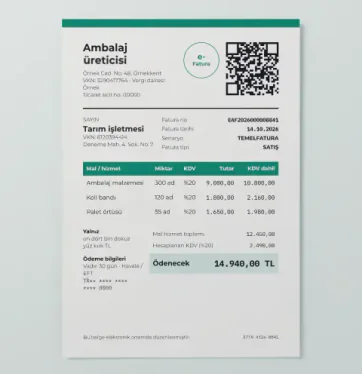
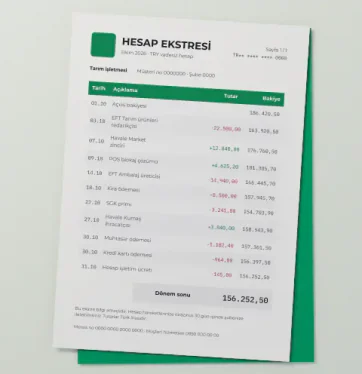
The companies, people and numbers in these images are fictional.
Your clients access only their own workspaces. They view the documents they have uploaded and track period statuses. They cannot access accounting firm screens.
01Your clients sign in at the same address. No additional software installation is needed.
02They can upload documents and delete documents they uploaded themselves.
03AI, Excel output, board and subscription screens are not available to client users.
04Clients set the roles and permissions of their own users on the Role management screen.
How do my clients sign in?
They use the same address and sign-in screen; no installation is required. After signing in, they are directed to their own workspaces.
How do I invite client users?
Select the client and invite the user by email address. The link is valid for 24 hours. Client users cannot register directly; the accountant creates the workspace.
What information can client users access?
They can access only the workspace of the client they belong to. The Upload, Uploads, Tracking, Tasks, Staff and My organization info screens are shown according to their role.
Can a user access workspaces for different clients?
Yes. They can have a different role for each client. They can switch workspaces by selecting a client in the app.
Connect with your clients on Muyoco
Add 10 clients with the free plan. Manage communication, document sharing and period tracking in one place.
No credit card required.